How to OCR a scanned PDF without uploading it
By the LambiPdf team · Updated 3 November 2026 · 8 min read
You scan a contract, a receipt or an old letter, and the PDF looks perfect, but you can’t search it, copy a sentence or paste a figure into a spreadsheet. That is because a scan is a picture of text, not text. Optical character recognition (OCR) turns the picture back into characters. This guide explains how it works, how to get good results and how to do it without sending the document to anyone.
Why scanned PDFs aren’t searchable
A PDF created from a word processor stores real characters: the letter “a”, its font and its position. A PDF created by a scanner or a phone camera usually stores one image per page. Your eyes read the image without trouble, but to the computer it is a grid of pixels. Search, copy, screen readers and converters all need characters, so they find nothing.
A quick test: open the PDF and try to select a single word. If individual words cannot be selected, the file may be a scan. That is a clue rather than proof: permissions, font encoding or the viewer can also affect selection. Compare with a text extraction and the document source.
What OCR produces
LambiPdf’s OCR tool can give you two kinds of result, separately or together:
- A searchable PDF. The page keeps its original look, with an invisible text layer placed over it. You can search, select and copy, and the document still looks like the scan.
- A plain text file. Just the recognized words, ready to paste into an email or a document, or to edit.
If what you actually need is a table in a spreadsheet, skip this step. The PDF to Excel and PDF to CSV converters run the same on-device OCR automatically on pages that have no text.
Choose the right language first
OCR engines recognize characters by comparing shapes against what they have learned for a language. Picking an unsuitable language can reduce recognition quality: accented letters come out as plain ones, and non-Latin scripts turn into nonsense. LambiPdf bundles 45 recognition languages, including Chinese, Japanese, Korean, Arabic, Hindi and most European languages. Choose the language of the document in the “Text language for scanned pages” menu before you run OCR.
How to get better OCR results
Recognition quality depends far more on the input than on the software. If you control the scan, these make the biggest difference:
- Resolution. Around 300 dpi is a useful starting point for printed text, consistent with Tesseract’s guidance. Tiny type may need more detail. Enlarging an already blurred image cannot restore missing detail.
- Straight pages. Skewed or curled pages, like a photo of an open book, confuse line detection. Flatten the page and keep the camera square to it.
- Even light. Shadows across the page and glare on glossy paper hide characters. Daylight near a window works well for phone scans.
- Contrast. Faint photocopies and colored backgrounds recognize poorly. If your scanner has a “text” or “black and white document” mode, use it.
- One column at a time. Complex layouts with sidebars and captions may be read in an unexpected order. Check the text output before relying on it.
Handwriting, stylized fonts, stamps over text and very small print can be difficult to recognise. OCR is a reading aid, not a guarantee.
Always check numbers
OCR errors are often small and believable: a “5” read as “S”, a “1” as “l”, a decimal point dropped. In prose that is a typo. In an invoice total, a bank statement or a dosage it can matter a lot. When you OCR anything with figures, compare the important values against the original image before you use them.
Why OCR in the browser
Scanned documents tend to be the personal ones: IDs, medical letters, signed contracts and tax papers. Many OCR services upload each page to a server for processing. LambiPdf downloads the recognition engine and language data to your browser and runs it on your device, rather than uploading document contents for recognition. Downloading application assets is separate network activity. The trade-off is speed: a large scan on an older phone takes longer than it would in a data center. Keep the tab open while it works.
Try it: turn an image-only meeting note into searchable text
Download the fictional scanned PDF, or use the same page as a PNG image. These are public practice files, not a real meeting or financial record. Before OCR, the PDF has no extractable text.
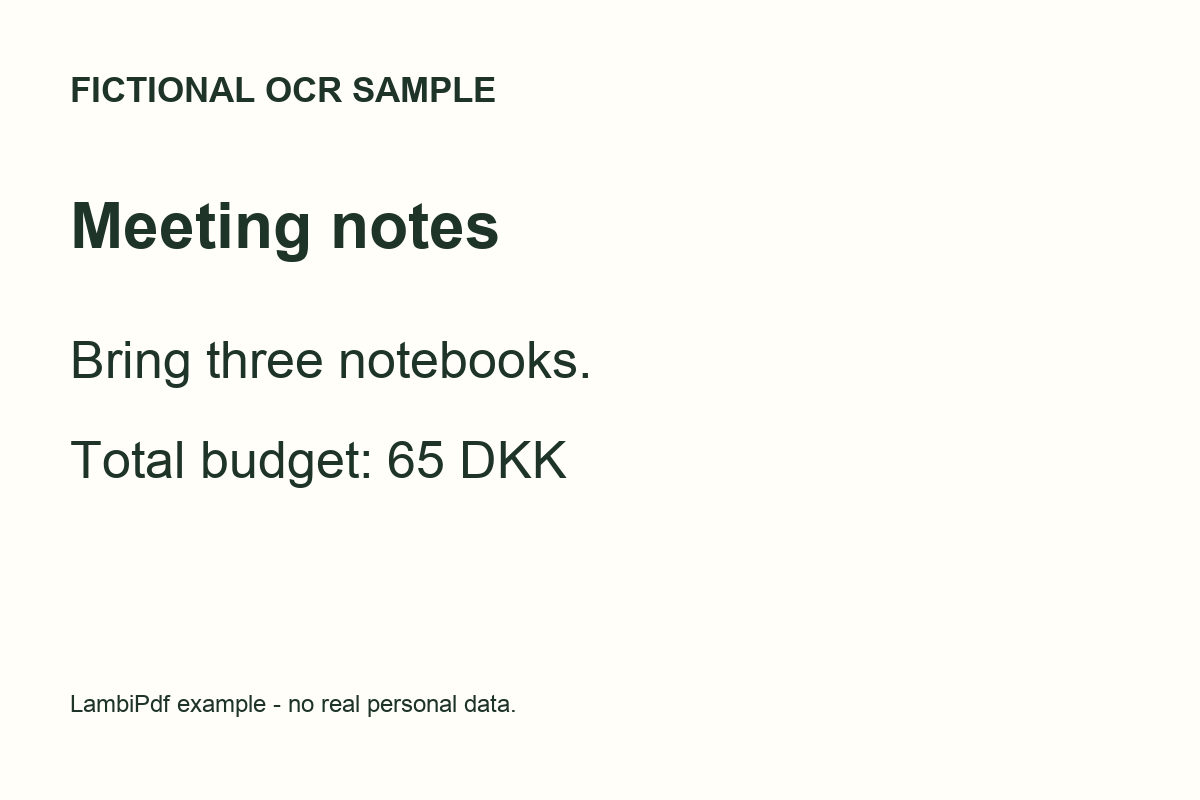
- Open OCR, add the sample and choose English as the text language. This example tests English only; it does not establish accuracy for the other available languages.
- Choose a searchable PDF and text output, then run the operation. Keep the tab open and check the progress. The initial engine/language load and recognition take time; duration depends on the device and input.
- Review the result against the image. Check the sentence “Bring three notebooks.” and the amount “65 DKK”, then download. Search for “notebooks” in the saved PDF and compare its appearance with the source.
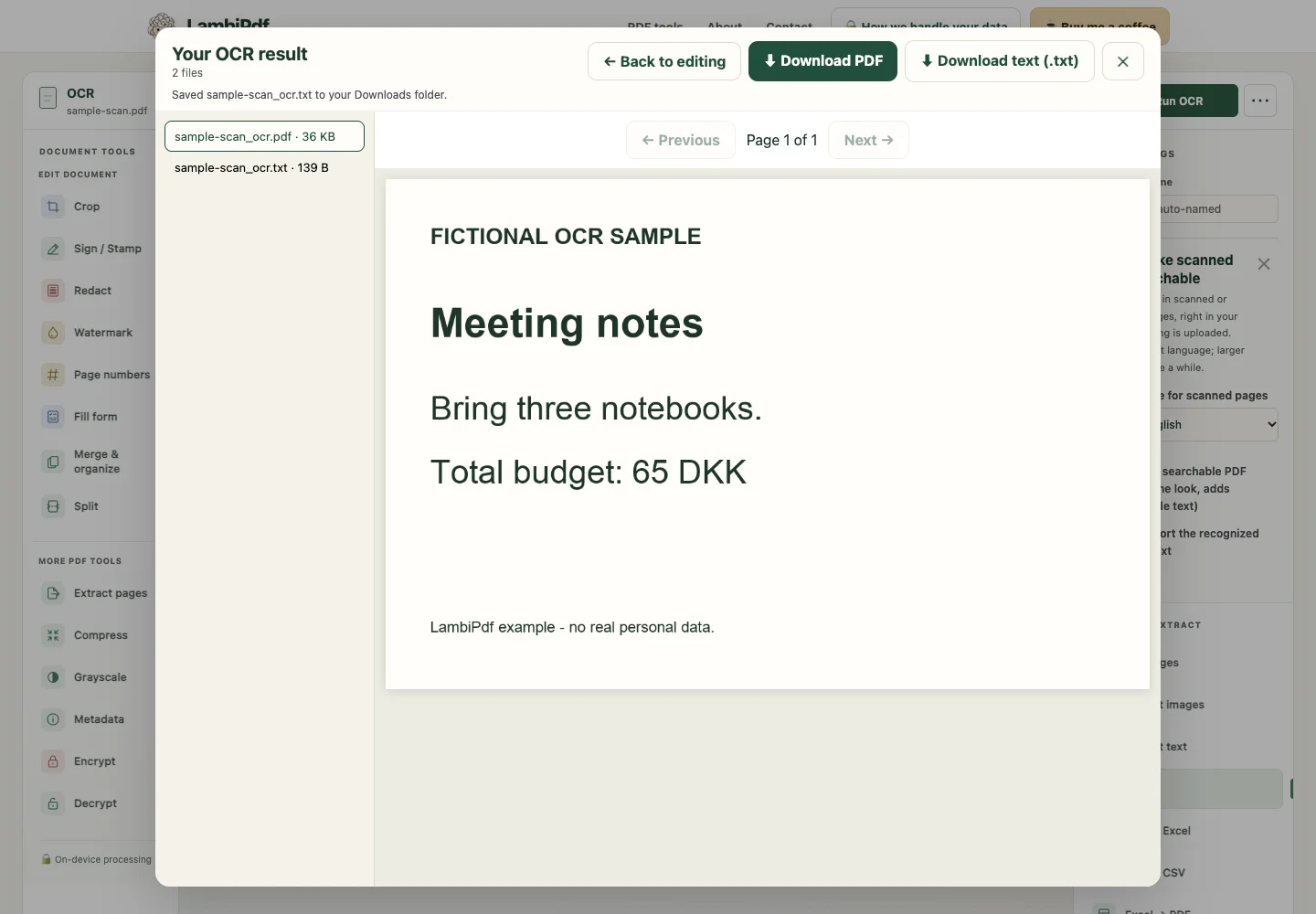
Compare with the generated files
Download the searchable PDF generated by LambiPdf and its recognised text. Our browser check uses the real local OCR worker and verifies that the recognised output includes “Bring three notebooks” and “65 DKK”. It also renders the searchable PDF for visual review.
Limits: a clean synthetic English sample is easier than a folded receipt, handwriting or a blurred phone photo. It is a repeatable demonstration, not an accuracy benchmark. Check every important name, date, decimal and total yourself. A searchable PDF is not automatically a fully tagged, accessible document.
Questions people ask
How do I know if my PDF needs OCR?
Try to select a single word. If you cannot select words, the file may be image-only. Selection can also fail because of permissions, font encoding or viewer behaviour. Compare with text extraction before deciding to run OCR.
Does OCR change how my PDF looks?
No. A searchable PDF keeps the original page image and adds an invisible text layer on top, so it looks the same but can be searched and copied.
Can OCR read handwriting?
Only poorly. OCR engines are trained mainly on printed text. Neat block capitals may work; cursive handwriting usually produces many errors.
Sources and further reading
These references explain the underlying concepts. They are not endorsements of LambiPdf.