How to redact a PDF properly
By the LambiPdf team · Updated 3 November 2026 · 7 min read
Redaction means permanently removing information from a document before someone else sees it. In a PDF this is harder than it looks. A black rectangle that covers a name on screen can leave that name sitting in the file, where anyone can copy, search or extract it. This guide explains why, and how to redact in a way that actually removes the content.
Why a black box is not a redaction
A PDF page can contain separate text, image and drawing objects. Text is stored as characters with positions, images are stored as pictures, and annotations such as highlights, comments and drawn shapes sit on top. When you draw a black rectangle in a typical PDF viewer or annotation app, you add a new shape on top of the page. The text underneath is untouched.
When a shape merely covers existing text, possible consequences include:
- Copy and paste still works. Select the area under the box, copy, and paste into a text editor. The hidden words appear.
- Search still finds it. Ctrl+F or Cmd+F matches text under a shape, because the text is still part of the page.
- The box can be deleted. Many editors let a recipient select the rectangle and remove it.
- Text extraction ignores the box. Tools that pull text out of a PDF read the text layer and never look at your drawing.
Over the years, court filings and published reports have leaked exactly this way: what looked blacked out on paper was perfectly readable to anyone who copied the text. The fix is not a darker box. The fix is to make sure the original content is no longer in the file.
What real redaction does
A proper redaction removes or replaces the content under the marked area so it no longer exists in the saved document. There are two common approaches:
- Object removal. Professional editors delete the text characters and image pixels inside the marked area, then draw a filled box in their place. Done well, this keeps the rest of the page as selectable text.
- Flattening. The marked page is rendered to a single image with the boxes burned in, and the original page is replaced by that image. The replacement page image does not retain the original selectable text layer. Other places information may occur still need review.
LambiPdf’s Redact tool uses flattening for the pages you redact. The trade-off is that text on a redacted page is no longer selectable or searchable. This can also reduce accessibility and prevent copying text elsewhere on that page. Consider those trade-offs and your organisation’s requirements before using it. Pages you did not mark stay as they were.
Step by step: redacting with LambiPdf
- Work on a copy. Keep your original somewhere safe. Redaction is meant to be irreversible, so you want the unredacted file available to you, not to the recipient.
- Open the PDF at lambipdf.com and choose Redact. The file is read by your browser; it is not uploaded.
- Draw a box over each item. Cover the whole line or value, including labels that would let someone guess it, such as “Account no.” followed by a partial number.
- Check every page. Names, account numbers and addresses often repeat in headers, footers, signatures and tables further down.
- Save and reopen the downloaded file. Review the output, not the editor view.
How to verify a redacted PDF
Never trust a redaction you have not tested. Open the file you are about to send and try to get the information back:
- Search for the exact name or number you removed.
- Select the redacted area and copy it, then paste into a plain text editor.
- Run the file through a text extractor such as PDF to text and search the result.
- Zoom in on page edges, small print and images. A photo of a document inside a PDF is an image, and its contents are not text.
- Check the document properties. Title, author and subject fields can contain names. LambiPdf’s metadata tool lets you edit them.
Places sensitive information hides
A technically correct box can still miss information elsewhere:
- Repeated values. A reference number in the header of every page, not just the first.
- File names. “Smith-divorce-settlement.pdf” tells the reader what you removed. Rename the output.
- Form fields and comments. Filled form fields and sticky-note comments carry text of their own.
- Attachments. PDFs can embed other files. If you received the document from someone else, check whether it has any.
- Context. Removing a name but leaving a unique job title and a date can still identify a person.
Why redacting in the browser matters
The documents people redact are, by definition, the ones that contain something sensitive. Uploading them to a website to remove that information moves the very data you are protecting onto someone else’s server. LambiPdf processes the file in your browser tab, so the unredacted document stays on your device. You can confirm this yourself by opening your browser’s developer tools and watching the Network tab while you work.
Redaction is one part of handling a document safely. Your organization may have rules about which tools are approved, how originals are stored and who checks a redaction before release. Follow those first.
Try it: remove a fictional account reference
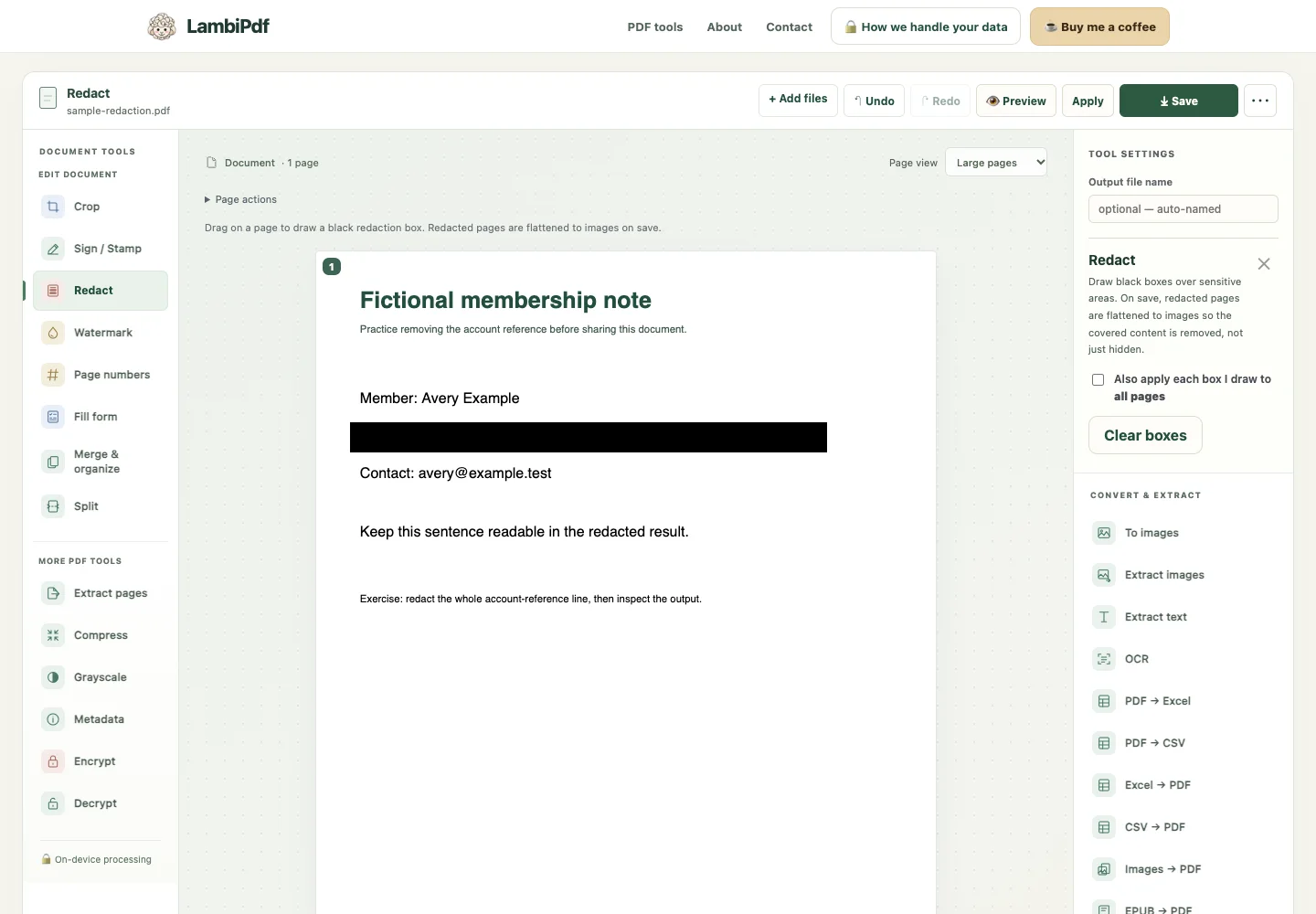
This practice document contains fictional details only. Download the original membership note and keep it as the comparison copy. The account reference is DEMO-4821-7390; the sentence “Keep this sentence readable in the redacted result” should remain visible.
- Open Redact and add the sample. Draw one box around the whole account-reference line. Leave “Also apply each box I draw to all pages” unticked for this one-page example.
- Choose Preview to inspect the proposed output. Apply bakes the edit into the working document if you want to continue editing; Save opens the result review, where you can download the export.
- Open the downloaded file again. Inspect the blacked-out line and surrounding content, search for the reference and try copying text. Compare with the example PDF exported by LambiPdf.
What we checked
The original sample contains the reference as selectable text. Our browser check exports through LambiPdf, reopens the result with PDF.js and extracts its text. The exported page does not contain the reference in that extraction. The page is rasterized, so its other visible words also lose their original selectable text. We also inspect the rendered result for the box position and visible surrounding content.
Limits: this checks one fictional page, not every possible PDF or all hidden information. Search and copy checks alone do not prove safe redaction: an image-only original can already return no text. Check metadata, attachments, repeated values and identifying context separately. LambiPdf does not offer a comprehensive sanitization audit.
Questions people ask
Can someone remove a redaction from a PDF?
If the redaction was only a shape drawn on top of the page, yes: the shape can be deleted or the text under it copied. When the export actually removes the original content, removing the visible box does not restore that original text. Still check other pages, hidden information and identifying context; this is not a blanket security guarantee.
Why can’t I select text on a redacted page anymore?
LambiPdf flattens redacted pages into images so the covered text is truly gone. That also turns the rest of that page into an image. Pages you did not redact keep their selectable text.
Is it safe to redact a confidential document online?
It depends on where the processing happens. Many online tools upload your file to a server. LambiPdf processes the document in your browser rather than uploading its contents for redaction. Suitability also depends on your device, browser extensions and organisation requirements.
Sources and further reading
- The National Archives: an example of why covering text can fail
- Adobe: hidden-content removal and sanitization
These references explain the underlying concepts. They are not endorsements of LambiPdf.